
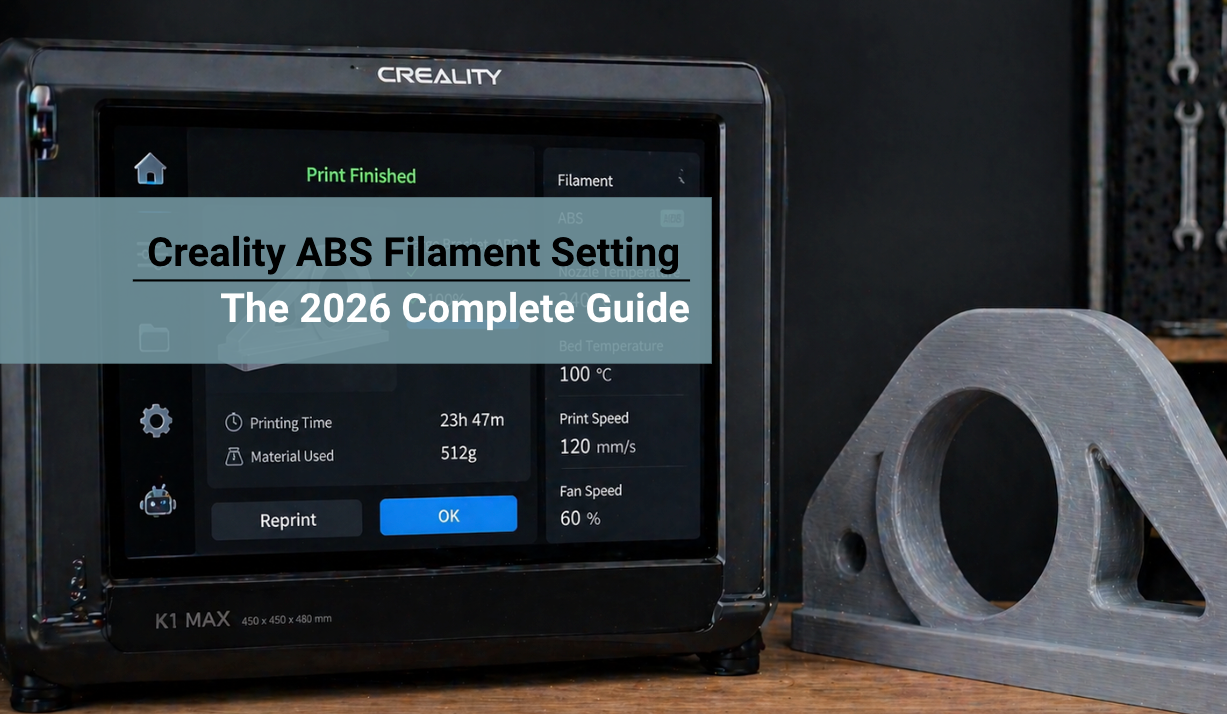
ABS is a great material. It handles heat up to 100°C, takes sanding and painting well, and makes solid functional parts like car trim, tool handles, and enclosures.
The catch is that ABS is picky. Get the nozzle temp, bed temp, cooling fan, and enclosure wrong and your print cracks or curls.
- Nozzle temp for ABS on Creality printers: 230 to 250°C. Use 240°C as a safe starting point.
- Bed temp: 100 to 110°C. Below 90°C and your first layer will lift.
- Chamber temp: 50 to 65°C is ideal. Open printers like the Ender 3 need a DIY enclosure.
- Cooling fan: 0 to 20%. Too much fan causes layer cracks.
- Print speed: 40 to 60 mm/s for older printers, 150 to 250 mm/s for K1 and K2 Plus.
- Use a glue stick or PEI plate. A clean textured bed plus glue stick beats most ABS adhesion issues.
- Always dry the filament first. ABS absorbs water faster than PLA or PETG.
Why ABS Is Tricky on Creality Printers

ABS (Acrylonitrile Butadiene Styrene) is the plastic in car bumpers, LEGO bricks, and computer keyboards. It is tough, heat-resistant, and paintable.
But it shrinks a lot as it cools, and that shrinkage is what causes every common ABS print failure.
Here is what happens step by step:
-
Hot plastic exits the nozzle at around 240°C.
-
It hits cooler air in the room.
-
As it cools, it shrinks by about 0.5 to 0.8 percent.
-
The layers below are already solid, so the new shrinking layer pulls on them.
-
If that pull is strong enough, the print warps at the corners or cracks along the layers.
The fix is simple in theory and hard in practice: keep the whole print warm and shielded from drafts until it is done. That means enclosed chamber, hot bed, slow speeds on the outer walls, and almost no cooling fan.
Creality's own blog post notes that even their faster printers use 30 to 60 mm/s as the baseline ABS speed, though the enclosed K1 and K2 Plus can push much higher with the right settings.
For a deep dive on why chamber temperature matters more than any other single setting, check the ABS 3D Printer Temperature guide on the Siraya blog.
Creality ABS Settings by Printer Model
Not every Creality printer handles ABS the same way. The open-frame Ender series needs more babysitting. The enclosed K1 and K2 Plus can actually push high speeds. Here are tested settings for each machine.
Table 1: Creality ABS Filament Settings by Model
| Setting | Ender 3 / V2 / Pro | Ender 3 S1 Pro | K1 / K1 Max | K1C | K2 Plus |
|---|---|---|---|---|---|
| Nozzle temperature | 235 to 245°C | 240 to 250°C | 250 to 270°C | 250 to 270°C | 250 to 275°C |
| Bed temperature | 100 to 110°C | 100 to 110°C | 100 to 110°C | 100 to 110°C | 100 to 110°C |
| Chamber temperature | DIY enclosure needed | DIY enclosure needed | ~50°C (passive) | ~50°C (passive) | 50 to 60°C (active) |
| Print speed | 40 to 50 mm/s | 50 to 60 mm/s | 150 to 250 mm/s | 200 to 300 mm/s | 200 to 300 mm/s |
| First layer speed | 20 mm/s | 25 mm/s | 50 mm/s | 50 mm/s | 60 mm/s |
| Cooling fan | 0% | 0 to 10% | 0 to 20% | 0 to 20% | 0 to 20% |
| Retraction (Bowden) | 5 to 6mm at 40 mm/s | 5 to 6mm at 40 mm/s | N/A | N/A | N/A |
| Retraction (Direct Drive) | N/A | 1 to 1.5mm at 40 mm/s | 0.8 to 1.2mm at 40 mm/s | 0.8 to 1.2mm at 40 mm/s | 0.8 to 1.2mm at 40 mm/s |
| Nozzle type | Brass or steel | Brass or steel | Steel recommended | Steel | Hardened steel |
Universal Slicer Settings for ABS
These are the settings that apply to every Creality printer running ABS, regardless of model. Dial these in first, then tweak per-printer based on the table above.
Table 2: Universal Slicer Settings for ABS on Creality
| Slicer Setting | Recommended Value | Why It Matters |
|---|---|---|
| Layer height | 0.2mm | Best balance of speed and strength for ABS |
| Wall count/perimeters | 4 to 5 | Stronger parts, less cracking |
| Top layers | 5 to 6 | Solid top surface without pillowing |
| Bottom layers | 5 | Strong first-layer base |
| Infill | 25 to 40% gyroid | Gyroid spreads the load evenly |
| Line width | 0.48mm (for 0.4mm nozzle) | Better layer bonding, stronger walls |
| Extrusion multiplier | 0.95 to 1.00 | Prevents over-extrusion in the hot chamber |
| Z-hop | 0.2mm | Reduces stringing on travel moves |
| Minimum layer time | 10 seconds | Small layers get enough cool time |
| Bed adhesion | Brim (5mm) | Essential for tall ABS parts |
| Adhesion surface | Textured PEI plus glue stick | Works across every Creality model |
Fix the Big Three ABS Problems
1. Warping (Corners Lifting)
This is the most common ABS problem. Your corners lift, and the whole print peels up.
Why it happens: The outer edges cool faster than the center and shrink. With nothing to hold them down, they pull up.
Fixes in order of impact:
-
Build an enclosure. For the Ender series, use foam board, acrylic panels, or even a cardboard box. Aim for 40 to 50°C inside.
-
Raise the bed temp. Try 110°C. Do not go above because it can soften the PEI.
-
Clean the bed. Wash with warm water and dish soap every few prints. Oils from your hands kill adhesion.
-
Add a brim. 5mm minimum. For large flat parts, use a 10mm brim or a raft.
-
Apply glue stick. A thin layer of Elmer's glue stick before every ABS print adds real grip.
-
Reduce the first layer speed. 20 mm/s gives the plastic time to bond.
2. Cracking Between Layers
Your print finishes but splits along a horizontal line halfway up.
Why it happens: The upper layers cooled and shrank while the lower layers were already solid. The stress pulled them apart.
Fixes:
-
Keep the enclosure warm. A stable 50°C chamber is the single biggest fix.
-
Turn the cooling fan off for the first 30 layers, then 0 to 10% after.
-
Increase wall count to 5. More walls mean better layer bonding at the skin.
-
Raise nozzle temp by 5 to 10°C. Hotter plastic bonds better.
-
Reduce print speed. Slower layers stay hot longer and bond better.
3. Poor Bed Adhesion
Your first layer looks fine but pops off at layer 20 or 50.
Fixes:
-
Check bed level. A Z-offset that is even 0.05mm too high ruins ABS adhesion.
-
Use a brim or raft. Always for anything over 50mm tall.
-
Apply glue stick or Magigoo. Critical on glass beds.
-
Turn on the first-layer fan at 0%. Never cool the first layer with ABS.
-
Dry your filament. Wet ABS prints foamy and does not stick well. Dry at 60°C for 4 to 6 hours.
ABS Filament Quality Matters More Than You Think

Not all ABS filament is the same. Cheap generic ABS can ruin your settings work because the material itself is inconsistent. Diameter varies, colors absorb moisture differently, and additives can affect the glass transition point.
A few things to look for:
-
Diameter tolerance of ±0.02mm or better. Crucial for high-speed printing on the K1 and K2 Plus.
-
Low moisture packaging. Sealed with desiccant, ideally in a waterproof bag.
-
Consistent melt flow index. Look for filaments labeled "high flow" or "HF" for the K1 and K2 Plus.
The Siraya Fibreheart ABS HT HF filament is designed specifically for high-speed CoreXY printers like the K1 and K2 Plus, with a higher melt flow rate and improved thermal stability. For projects that need extra stiffness without going full carbon fiber, the ABS-GF with glass fiber reinforcement cuts warping even further and works great with the same Creality slicer profiles.
For a full look at Creality-compatible filaments, the Filament for Creality K1 Series collection has every option tested for K1, K1C, K1 Max, and the newer K2 Plus.
Print Speed Tips for Each Creality Printer
Creality's own blog notes that 30 to 60 mm/s is the baseline for older printers, but modern ones can go much faster. Here is the real-world range for each model printing ABS:
-
Ender 3, V2, Pro: 40 to 50 mm/s comfortable, up to 60 mm/s with tuning
-
Ender 3 S1 Pro: 50 to 70 mm/s
-
Ender 3 V3 SE / KE: 60 to 100 mm/s
-
K1 / K1 Max: 150 to 250 mm/s with high-flow ABS
-
K1C: 200 to 300 mm/s on outer walls, higher on infill
-
K2 Plus: 200 to 300 mm/s with active chamber heat
The golden rule: the outer walls should always print slower than infill. Set outer wall speed to about 50 to 60 percent of your max speed for cleaner surfaces.
For a deeper comparison of filament behavior on the Ender series, see the Ender 3 Filament Guide.
FAQs: Creality ABS Settings
What temperature should I print ABS at on a Creality printer?
For ABS on Creality printers, set the nozzle to 235 to 250°C on the Ender series, and 250 to 270°C on the K1, K1C, K1 Max, and K2 Plus. Set the bed to 100 to 110°C for all models. 240°C at the nozzle and 105°C on the bed is a safe starting point that works across the Creality lineup. Always dry your ABS filament first if it has been open for more than a week, since moisture will ruin your print quality no matter how dialed in the temperatures are.
Can I print ABS on a Creality Ender 3 without an enclosure?
You can print small ABS parts on an Ender 3 without an enclosure, but only up to about 50mm wide and 40mm tall. Larger prints will warp at the corners or crack between layers because the outer edges cool and shrink while the rest of the print is still hot. For anything bigger, you need an enclosure. A DIY cardboard box over the printer or a $40 acrylic panel kit works fine. Without an enclosure, switch to PLA or PETG for reliable larger prints.
How fast can you print ABS on a Creality K1 or K2 Plus?
The Creality K1 and K1 Max handle ABS at 150 to 250 mm/s with the right filament. The K1C and K2 Plus can push 200 to 300 mm/s thanks to the enclosed chamber and, for the K2 Plus, an actively heated chamber that hits 50 to 65°C. To hit these speeds you need high-flow ABS (sometimes labeled HT HF), a steel nozzle, and walls printed at about 60 percent of your max speed to keep the surface clean.
Why does my ABS print keep warping on my Creality printer?
ABS warps when the corners cool and shrink faster than the rest of the print. The fix is three things done together: enclose the printer to hold chamber temp around 40 to 50°C, raise the bed temp to 110°C, and use a brim at least 5mm wide. Also check that the cooling fan is off or below 10 percent for ABS, since direct airflow causes corner curling. Cleaning the bed with warm soapy water and adding a thin glue stick layer helps bigger prints stick through the full cycle.
Is Creality's Hyper ABS the same as regular ABS?
Hyper ABS is a higher flow version of ABS designed for faster print speeds. It has a slightly lower viscosity when melted, which lets the printer extrude more material per second without under-extrusion. The mechanical properties are similar to standard ABS once the print cools. If you are running a K1, K1 Max, K1C, or K2 Plus and want to print above 150 mm/s, use a high-flow ABS like Hyper ABS or Siraya ABS HT HF. On older Enders, regular ABS is fine.
Final Thoughts
Creality ABS settings are about keeping the print warm and shielded. Get your nozzle in the right range, the bed at 100°C+, and the enclosure closed.
Start with our baseline settings and use a 40mm calibration cube to confirm layer bonding before starting large projects.
Recommended Products & Collections
- High-Speed Printing: Siraya Fibreheart ABS HT HF Filament for K1/K2 speeds.
- Structural Stiffness: Fibreheart ABS-GF (Glass Fiber Reinforced) to cut warping further.
- Full Lineup: Filament for Creality K1 Series collection optimized for modern machines.
- Comparison: All Siraya 3D Printing Filaments to find your perfect match.