
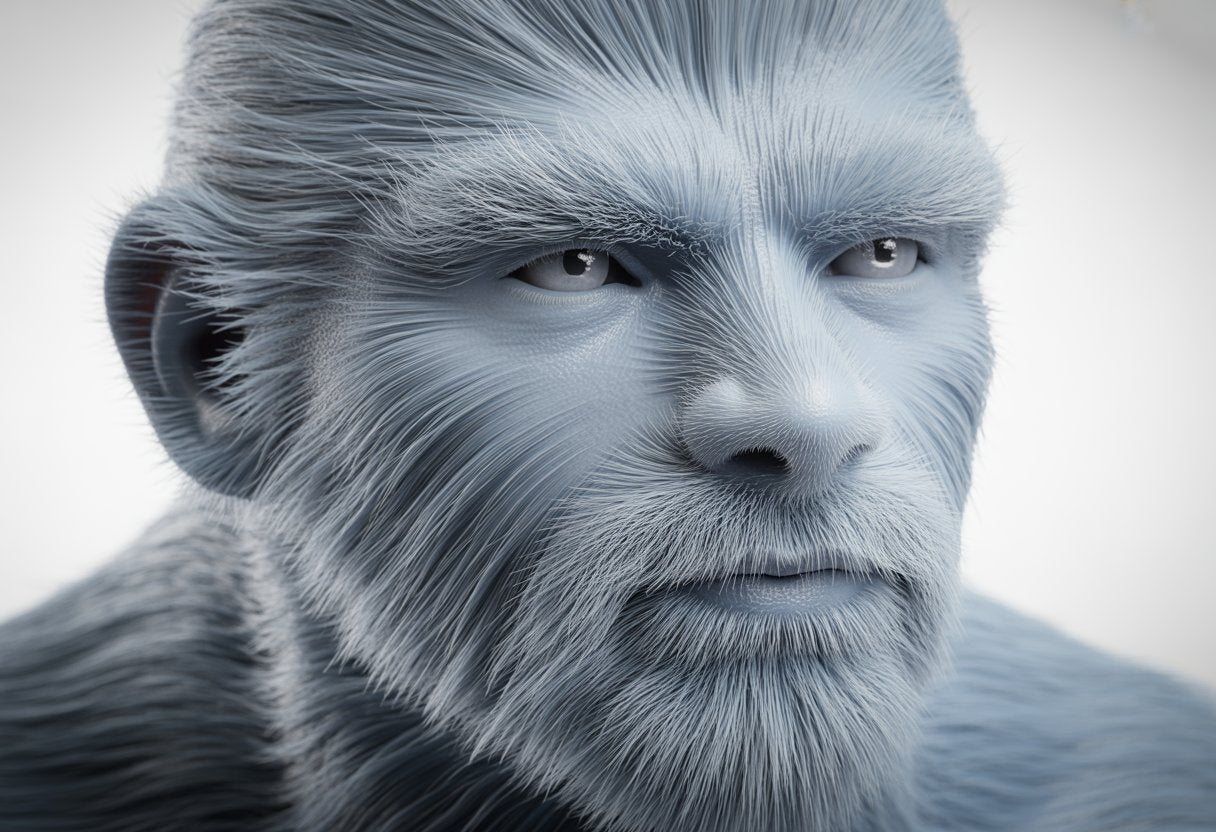
Fuzzy skin in 3D printing is a special setting that adds a rough texture to the outside of your printed parts. This simple feature hides ugly layer lines, removes visible seams, and gives your prints a unique textured finish that looks better than smooth plastic. Instead of spending hours sanding your prints to hide imperfections, fuzzy skin does the work for you during printing.
Most popular slicing programs like Cura and PrusaSlicer already have fuzzy skin built in, so you don't need extra equipment or special skills to use it. The setting works by making tiny random movements on the outer walls of your print, creating a bumpy surface that feels like sandpaper or soft fabric. Many makers use fuzzy skin on their prints because it's easy and makes parts look professional.
Whether you want to hide print flaws or just add a cool texture to your projects, fuzzy skin is worth trying. Read on to learn how to set it up and use it on your own prints.
Key Takeaways
- Fuzzy skin creates a textured surface that hides layer lines and printing imperfections
- You can enable and adjust fuzzy skin settings in most common slicer programs without hardware changes
- This feature works well for decorative prints and functional parts where extra grip is helpful
Check out our 1.75mm filament collection, made with tight diameter control (±0.02mm tolerance) for steady feeding and fewer clogs.
What Is Fuzzy Skin in 3D Printing?

Fuzzy skin is a slicer setting that creates a rough, textured surface on your 3D prints. It changes how the printer nozzle moves to make prints look and feel different from the usual smooth finish.
How Fuzzy Skin Works
The fuzzy skin feature works by adding small random movements to your printer's outer walls. When you turn it on in your slicer software, the nozzle doesn't move in perfectly straight lines anymore.
Instead, it wiggles slightly as it prints the outside of your model. The printer changes how much plastic comes out at random points during printing. These tiny shifts create bumps and texture all over the surface.
Your printer doesn't need special parts for this feature. The setting is built into popular slicers like Cura, PrusaSlicer, and OrcaSlicer. You just turn it on before slicing your file.
The texture only appears on the outer walls of your print. The inside stays normal, and your printer speed doesn't slow down.
Benefits of Fuzzy Skin
Fuzzy skin hides common 3D printing problems well. It covers up layer lines, which are the horizontal lines you normally see on prints. It also hides ringing and seam marks that can make prints look messy.
The rough texture makes your prints look unique. You can make models that look like stone, wood, or even fur without painting them. This saves time on finishing work.
The bumpy surface gives your prints better grip. This is useful for handles, grips, or tools that people need to hold. The extra friction makes them easier to use.
Drawbacks and Limitations
The fuzzy skin feature only works on the sides of your prints. Top and bottom layers stay smooth unless you use special techniques. Flat prints won't benefit much from the setting.
Your prints will use slightly more filament because of the random movements. The texture also makes prints a bit harder to measure accurately. If you need exact dimensions, fuzzy skin might cause problems.
Some models don't work well with this feature. Small details can get lost in the texture. Text and fine features become hard to see or read.
Different filament types show fuzzy skin texture differently. Learn which materials work best by reading our guide 3D Filament Types: Complete Guide for Every 3D Project.
Fuzzy Skin Settings and Parameters

Three main settings control how fuzzy skin looks on your 3D prints. These settings let you adjust the texture from subtle to very bumpy, and they work together to create the final surface effect.
Skin Thickness Explained
Skin thickness controls how far the printer nozzle moves away from the normal wall path. A low thickness of 0.10mm creates a light, subtle texture. Higher values like 0.30mm make the bumps much more noticeable. Most people start with values between 0.10mm and 0.20mm for a good balance.
The fuzzy skin thickness setting affects how much plastic gets pushed out during printing. If you set it too high, your print might look messy or have weak walls. Too low, and you won't see much texture.
Heat resistance matters for fuzzy-skinned tool handles and outdoor items. Discover our heat resistant filament options for durable textured prints.
Point Distance and Its Impact
Point distance tells your printer how often to create a new bump or texture point. A smaller number like 0.10mm means more bumps packed close together. This creates a fine, dense texture that feels smooth but looks matte.
Larger point distance values like 0.80mm space the bumps farther apart. Your print will have a chunkier, more obvious texture pattern.
The sweet spot for most prints is between 0.10mm and 0.40mm. You can match this setting with your thickness for balanced results. For example, using 0.10mm for both creates an even, professional-looking finish.
Skin Feature Size and Noise Types
Feature size works with point distance to create randomness in your texture. It affects how the bumps spread out across your print surface. Some slicers let you pick different noise patterns like random or perlin noise.
Random noise creates an unpredictable, natural-looking texture. It works great for hiding layer lines and making organic shapes.
You can apply fuzzy skin to your whole print or just the outside surfaces. Most slicers also let you control which walls get the effect. This helps when you want smooth inner surfaces but textured outer ones.
PLA works exceptionally well for fuzzy skin effects because it prints easily and shows texture clearly. Our PLA filaments for 3D printing offer reliable layer adhesion and smooth extrusion for clean, textured finishes.
How to Apply Fuzzy Skin with 3D Slicers

Most popular slicing programs have built-in fuzzy skin features that you can turn on with just a few clicks. The process is similar across different slicers, though the exact location of settings may vary.
Apply Fuzzy Skin in PrusaSlicer
You can find the fuzzy skin setting in PrusaSlicer by going to Print Settings, then Layers and perimeters. Look for the Fuzzy skin option in this menu.
Click the dropdown to turn on fuzzy skin for your entire print. This applies the texture to all outer walls of your model. You can adjust settings like thickness and point distance to control how rough the surface looks.
If you want fuzzy skin on just part of your model, you can use modifiers. Right-click your model and add a modifier shape. Then apply fuzzy skin settings only to that specific area.
PrusaSlicer version 2.4 or newer is required to use this feature. Older versions won't have the fuzzy skin option available.
Fuzzy Skin in OrcaSlicer
OrcaSlicer includes fuzzy skin settings that work similar to PrusaSlicer. The program is based on PrusaSlicer code, so many features work the same way.
Look for the fuzzy skin option in the print settings menu. You can enable it for the whole model or use modifiers to apply it to specific parts.
Other Compatible Slicers and Scripts
Cura has a built-in fuzzy skin setting that adds rough texture to your prints. You'll find it in the surface settings menu. Cura lets you adjust the thickness and density of the fuzzy effect.
Some slicers support special scripts to add fuzzy effects to top layers. The Fuzzyficator script can create textured top surfaces using non-planar printing. This goes beyond normal fuzzy skin which only works on vertical walls.
Most modern slicers now include some version of fuzzy skin. Check your slicer's documentation to find where the setting is located.
PETG creates interesting fuzzy textures too. Discover its properties by exploring our article What Is PETG Filament: A Guide in 3D Printing Applications.
Practical Tips for Printing with Fuzzy Skin
Fuzzy skin changes how you need to approach your 3D prints. It affects when you should use it, how long prints take, and how well your model sticks to the bed.
Choosing When to Use Fuzzy Skin
Fuzzy skin works best for decorative items like vases, art pieces, and figurines where you want a rough texture. It's great for hiding layer lines and making tool handles that are easier to grip.
Don't use fuzzy skin on parts that need to fit together precisely. The random texture makes dimensions less accurate. Skip it on functional parts like mechanical components or anything that needs smooth surfaces. The texture can also make your parts slightly weaker, so avoid it on items that need to be strong.
Fuzzy skin only affects the outside walls of your print. The top and bottom layers stay smooth unless you use special tricks.
Effect on Print Time and RAM Usage
Fuzzy skin makes your prints take longer to finish. The printer head moves in random patterns instead of smooth lines. This extra movement can add 10-20% more time to your print depending on your settings.
Your printer needs more RAM to handle fuzzy skin calculations. Older printers with less memory might struggle or even crash during slicing. If your slicer freezes when you turn on fuzzy skin, your computer might need more RAM.
The random movements also mean your printer works harder. Make sure your printer can handle the extra processing before starting a long print with fuzzy skin turned on.
Impact on Bed Adhesion and Surface Quality
Fuzzy skin can affect how well your first layer sticks to the bed. The textured surface on the outside walls doesn't cause problems, but you need good bed adhesion to start. Use a brim or raft if your prints don't stick well.
The surface quality changes a lot with fuzzy skin. You get a rough, matte finish that hides printing flaws like ghosting and z-seams. The texture feels similar to stone or rough wood.
Your print might look fuzzy in spots you don't want. The setting applies to all outer walls by default. You can't pick specific areas unless you modify your model or use special techniques.
Black filament makes fuzzy textures stand out beautifully by creating shadows in the surface variations. Check out our black PLA filament collection for decorative pieces and functional grips where texture visibility matters.
Creative Applications of Fuzzy Skin for 3D Prints
Fuzzy skin adds a rough, textured surface to your 3D prints that opens up new design possibilities. You can use it to create eye-catching finishes on decorative items or add practical features like better grip to everyday objects.
Aesthetic Finishes and Texture Effects
Fuzzy skin transforms smooth plastic surfaces into something that looks more natural and interesting. You can print vases, plant pots, and art pieces with a stone-like or organic texture that hides layer lines completely. This feature works well for decorative designs where you want a unique look.
The textured finish makes your prints feel more like natural materials instead of plain plastic. You might create sculptures that look weathered or aged without any post-processing. Art pieces benefit from the visual depth that fuzzy skin provides.
You can also use different fuzzy skin settings to control how rough or subtle the texture appears. Some prints look better with a light texture, while others need a more dramatic surface. The setting lets you match the finish to your creative vision.
Functional Benefits and Use Cases
Fuzzy skin isn't just for looks. The rough texture gives you better grip on handles, tool grips, and phone cases. Your fingers won't slip as easily on fuzzy surfaces compared to smooth printed parts.
The texture also helps hide small printing mistakes and layer lines. You don't need to sand or finish your parts as much when you use this feature.
Fuzzy skin works well for toys and game pieces because the surface feels more interesting to touch. Kids especially enjoy the different texture. You can also print custom coasters and decorative boxes that feel premium without extra work.
Flexible filaments can also use fuzzy skin for unique grip textures. Find out how by checking out our guide What Is TPU Filament: An Easy Guide For Smart 3D Printing.
Wrap Up
Fuzzy skin transforms your 3D prints from plain plastic into textured pieces that look professional and hide common printing flaws. This simple slicer setting saves you hours of post-processing while adding visual interest and practical grip to your projects.
Whether you're making decorative vases or functional tool handles, fuzzy skin gives you better results with minimal effort.
Ready to take your prints to the next level? Siraya Tech offers premium filaments engineered for consistent extrusion and reliable performance. Our 3D printer filament and strong filament collections give you the quality you need for clean, textured prints every time.
Not all printers use the same materials for fuzzy effects. Get answers by reading our article Do All 3D Printers Use the Same Filament?.
Frequently Asked Questions
How do you get that soft, furry texture on 3D printed parts?
You can get a soft, fuzzy look by turning on the fuzzy skin setting in your slicing software. This feature tells your printer to move the nozzle slightly while printing the outer walls of your model.
The printer moves the nozzle in and out at random spots, creating small bumps and texture across the surface. The result looks and feels like microfiber or soft fabric.
What settings should I tweak to print with a fuzzy finish?
Find the fuzzy skin setting in your slicer and turn it on. Adjust the thickness setting to control how far the nozzle moves away from the wall.
The distance setting changes how often the nozzle creates new random points. Start with small numbers and test your print. Increase these values to make the fuzz more noticeable.
Any tips for smoothing out the fuzz on my 3D printed model?
If you want a smooth surface, turn off the fuzzy skin setting in your slicer.
You can also sand the surface after printing if you already made a fuzzy print but want it smooth.
Is it possible to create a fuzzy skin effect on any 3D printer?
Most 3D printers can use fuzzy skin if your slicing software supports it. Your printer does not need special parts to use this feature.
What materials work best when trying to achieve a fuzzy surface on a print?
PLA works well for fuzzy skin prints because it's easy to use and shows the texture clearly.
You can also try PETG or ABS. The texture might look slightly different depending on the material you choose. ABS offers heat-resistant fuzzy surfaces. Understand when to use it by exploring our post What is ABS Filament? Uses, Pros, and Cons for 3D Printing.
Can you explain the pros and cons of printing with a fuzzy texture?
Fuzzy skin gives your prints a unique look and a pleasant feel. It works well for tool handles, vases, and art pieces. The texture hides layer lines, so you don't need extra finishing.
However, fuzzy prints take longer to complete than smooth ones. The texture makes parts harder to clean because dust can get trapped. You also can't get precise measurements on fuzzy surfaces, so it's not suitable for parts that need to fit together exactly.