
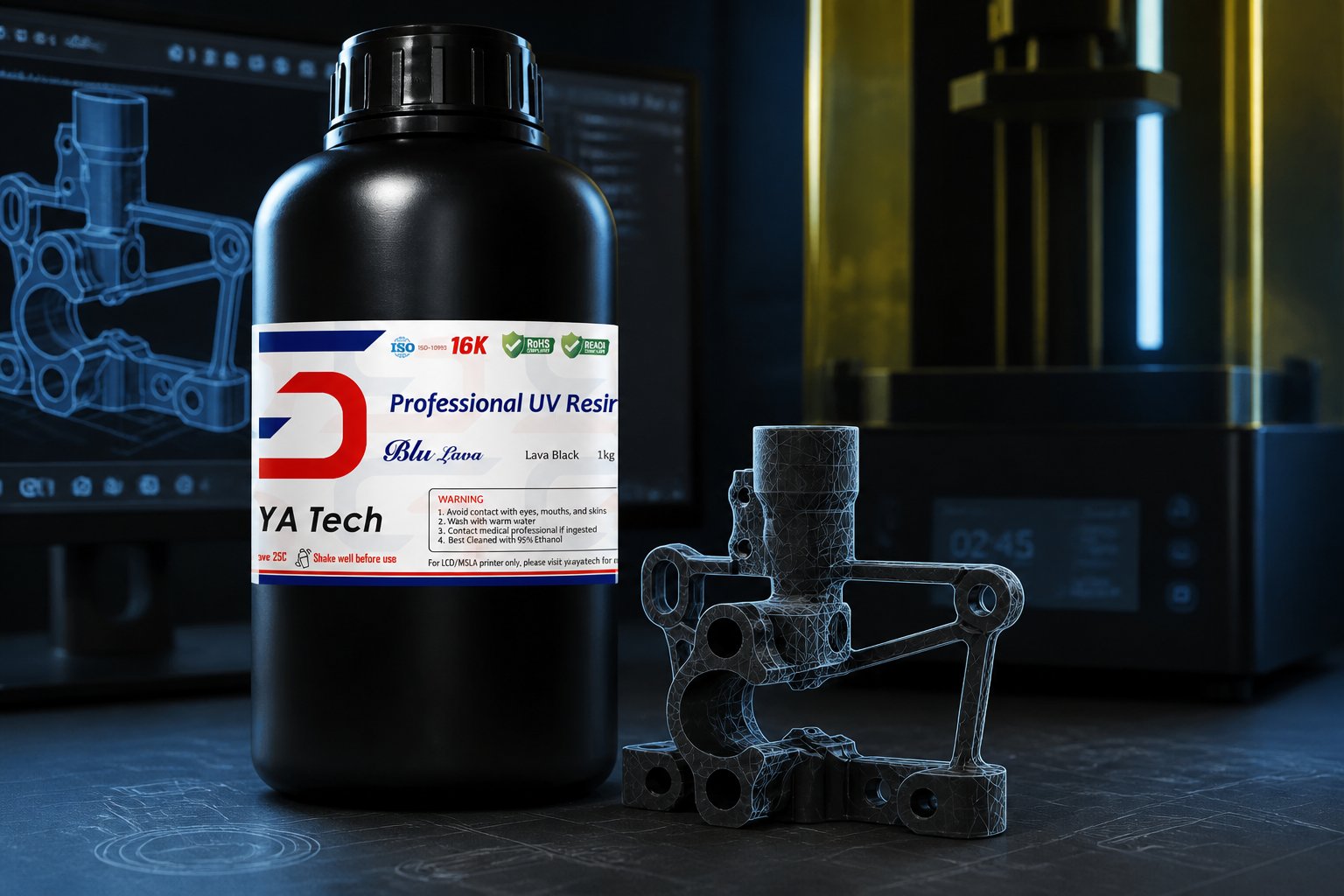
Image to 3D model AI is changing the way resin printing enthusiasts bring their ideas to life. What once required advanced 3D modeling skills can now be done in minutes using the right AI tool. For resin printing, this technology is especially exciting — resin printers produce highly detailed results, and AI-generated models are becoming accurate enough to match that precision. In this guide, we cover the best tools, workflows, and tips to help you get print-ready results every time.
- AI tools turn photos into print-ready STL files in under a minute — no 3D skills needed
- Most platforms get you close, but a quick cleanup pass is still needed before slicing
- Choosing the right tool and prepping clear images means better prints and fewer failures
Looking for the right resin for your prints? Browse our full range of 3D printing resins and find the perfect match for your next project.
Selecting Top AI Tools for Resin Printing

Resin printing asks for higher mesh quality than FDM, since layer heights can go as fine as 0.05mm. You need an AI 3D model generator that gives you watertight geometry with enough detail, but also fits your workflow and budget. Not every tool hits that sweet spot.
Criteria for Choosing an Image to 3D Model AI Tool
Mesh resolution makes or breaks your details, especially for miniatures. 1024³ resolution works for most figurines, but if you're into ultra-fine minis, look for 1536³ to keep surface texture crisp at those tiny layers.
Watertightness isn't optional. Slicers choke on meshes with open edges or holes. The best tools give you at least half your models watertight right out of the box.
Wall thickness control is a big deal. Thin walls — under 0.3mm — snap during cleaning or handling. Make sure your tool lets you tweak minimum thickness before generating.
STL export quality can save you hours. Clean topology and proper normals mean less time fixing things in Meshmixer or Blender.
Commercial use licensing changes by platform. Free tiers usually stick you with personal use only; paid plans usually unlock commercial rights for your generated models.
Leading AI Solutions Compatible With Resin Printers
Meshy nails a 97% slicer pass rate for characters and figurines, no 3D skills required. It supports direct STL export and one-click Bambu Studio integration. You get 1024³ resolution, PBR texturing, and commercial use rights on paid plans starting at $14.99/month.
Rodin is a strong pick for highly detailed organic meshes like miniatures and busts. It charges per download rather than per generation, making it cost-effective when you need to iterate. Downloads run $0.50–$1.50 depending on your plan.
Tripo creates clean quad-based topology with built-in auto-repair to fix non-manifold geometry before export. Generation usually takes about 30 seconds, but you'll still spend 10–25 minutes repairing complex models for resin printing tolerances.
| Tool | Resolution | Pricing | Best For | STL Export |
|---|---|---|---|---|
| Meshy | 1024³ | From $14.99/mo | Characters, figurines | ✅ Direct |
| Rodin | High detail | $0.50–$1.50/download | Miniatures, busts | ✅ Direct |
| Tripo | Quad-based | From $12/mo | Clean topology, auto-repair | ✅ Direct |
Process of Converting Images to 3D Models
Turning a photo into a 3D model isn't too complicated if you prep your image and use the right AI tool. The process takes your 2D image and spits out STL files you can use for resin printing — no manual modeling required.
Preparing Images Before 3D Model Conversion
Your image quality has a huge impact on the 3D model. Use high-res photos — at least 12 megapixels — to capture enough detail. The background's important too: a plain, uncluttered backdrop makes it way easier for AI to separate your subject.
Clear out any clutter before uploading. Plain white or neutral backgrounds work best for photo-to-STL conversion. Use even lighting, and avoid harsh shadows that might throw off the AI.
- 12MP resolution or higher
- Simple, clean background
- Even, soft lighting
- Sharp focus on your subject
- Minimal glare or reflections
If your converter supports it, take shots from multiple angles. This gives the AI more data for a better model. Save images as high-quality JPEG or PNG to keep all the detail.
Step-by-Step Conversion Using AI
Upload your prepped image to an AI image-to-3D platform. Most tools process your photo and spit out initial geometry in seconds. The AI looks for edges, depth cues, and surface details to build a 3D model from your flat image.
Check the previewed mesh for missing parts, holes, or weird surfaces. Many tools let you adjust depth or mesh density before you finalize the model.
- Upload your image
- Wait for AI processing (usually 30 seconds to 3 minutes)
- Preview the 3D model
- Tweak depth and detail settings if needed
- Export as STL
Download your model as an STL file for resin printing. STL preserves the geometry and keeps file size manageable for slicing. Some platforms also give you OBJ or FBX, but STL's still the go-to for 3D print workflows.
Printing with a 405nm UV printer? Shop our 405nm UV resins — formulated for clean, detailed results on every build.
Enhancing 3D Model Results for Resin Printing
AI-generated models usually need some tweaks before you can print them in resin. Most issues show up as mesh problems or settings that mess with print quality.
Addressing Common Post-Conversion Issues
When you export STL files from an AI generator, you'll probably run into mesh problems that stop you from printing. Non-watertight meshes are the main headache. These gaps confuse slicers and leave holes in your print.
You can fix watertightness with free tools like Meshmixer or Blender. Run a mesh analysis before you slice. Most errors pop up as red spots or warnings about open edges.
Common issues to check:
- Inverted normals (flipped surfaces)
- Overlapping geometry (duplicate walls)
- Walls thinner than your printer's minimum
- Disconnected parts floating separately
Clean geometry is especially important for custom figurines and miniatures. Tiny details — like fingers or weapon tips — often have problems. Take a close look at those in your mesh editor.
Improving Model Quality for Resin Printers
If you want print-ready 3D models, you'll need to tweak a few things for resin printing. Your AI-generated model might look fine on screen but still flop on the build plate without a little optimization.
Add more polygons to detailed areas, especially faces or hands. Resin printers can show off details that FDM can't, so give them something to work with.
Check your wall thickness. Most resin printers do well with 0.4mm to 0.8mm walls. Go thinner, and you're asking for breakage during printing or cleanup.
Hollow out your models and add drainage holes before printing. Trapped resin leads to failed prints and wasted material. Put drain holes where they're easy to clean and not too visible.
Orient your model in the slicer at an angle — usually 30–45 degrees. This helps with support placement and improves print quality. Even the best STL files need a little tilt to avoid suction and show off details.
Need parts that can take some punishment? Our high strength resins are built for functional prints that need to hold up under real stress.
Conclusion: Image to 3D Model AI
Image to 3D model AI has made it easier than ever to go from a photo to a print-ready file. The tools are fast, affordable, and getting better every month.
That said, resin printing still rewards a little patience. A quick cleanup pass in Blender, proper hollowing, and correct scaling will make the difference between a failed print and a great one.
Ready to take your resin printing further? Check out our guide on whether a 3D printing business is actually profitable and find out if it's worth turning your hobby into something more.
Frequently Asked Questions: Image to 3D Model AI
Most makers want to know which AI tool gives the cleanest meshes, how single-image conversion actually works, and if these generators are worth the setup time.
Best AI tool for image to 3D design?
Tripo and Meshy are top picks for resin printing — they export STL directly and give you cleaner topology than most others. Tripo runs about $12/month and fixes holes and non-manifold geometry before export, while Meshy's Pro plan starts at $14.99/month (billed annually) and includes plugins for Lychee Slicer. Rodin is worth considering for detailed organic meshes like miniatures, with per-download pricing at $0.50–$1.50 per file.
How to convert 2D image to 3D image online?
Upload your photo to an image-to-3D AI tool, wait 30 seconds to a couple of minutes, then download the mesh as GLB, OBJ, or STL. Meshy, Tripo, and Rodin all accept single-image uploads, with free tiers offering 8–10 non-commercial generations per month. Image-to-3D beats text-to-3D for accuracy, but expect random scale, uneven polygon counts, and no flat base — fix those in Blender or your slicer before printing.
How to generate a 3D model from only 1 image?
AI tools use either multi-view synthesis or direct 3D diffusion to reconstruct geometry from a single photo. You'll get strong detail on the visible side, but the hidden side is mostly guesswork based on training data. For best results, shoot in good lighting against a plain background from a slight angle — uploading multiple angles improves reconstruction quality significantly.
What are your thoughts about AI that generates a 3D model?
AI generators are a huge time-saver for organic shapes like miniatures, terrain, and props, getting you a usable mesh in minutes instead of hours. They're not a replacement for CAD when you need functional parts — threads, snap-fits, and brackets still require solid modeling with real dimensions. By 2026, these tools are production-ready as a first pass, but plan on five to fifteen minutes of cleanup before every print.