
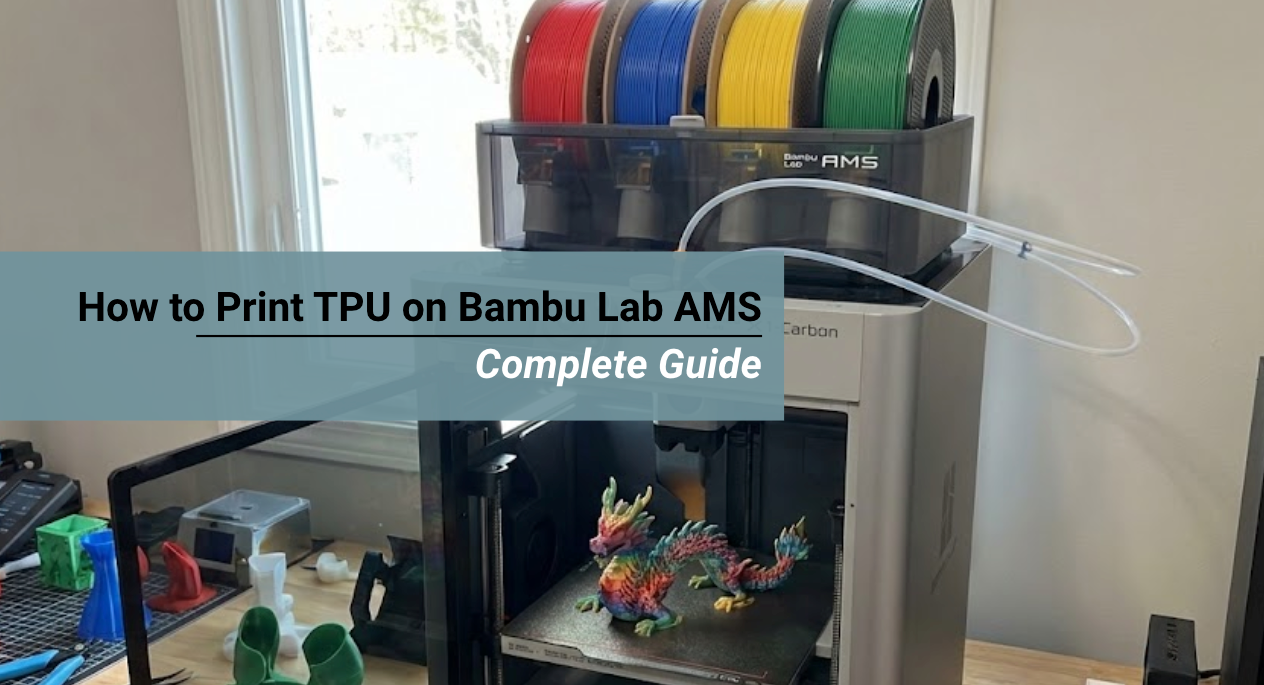
So you have a shiny new Bambu Lab X1 or P1 series printer, and you want to print flexible parts. The burning question: How to print TPU on Bambu Lab AMS?
The short answer is: You can't put TPU *inside* the AMS box. However, you can print amazing TPU parts on your Bambu printer by using a simple workaround.
In fact, Bambu printers are some of the best machines for printing flexible filaments like Siraya Tech TPU thanks to their direct drive extruders.
You May Want to Shop TPU Filaments
Explore More
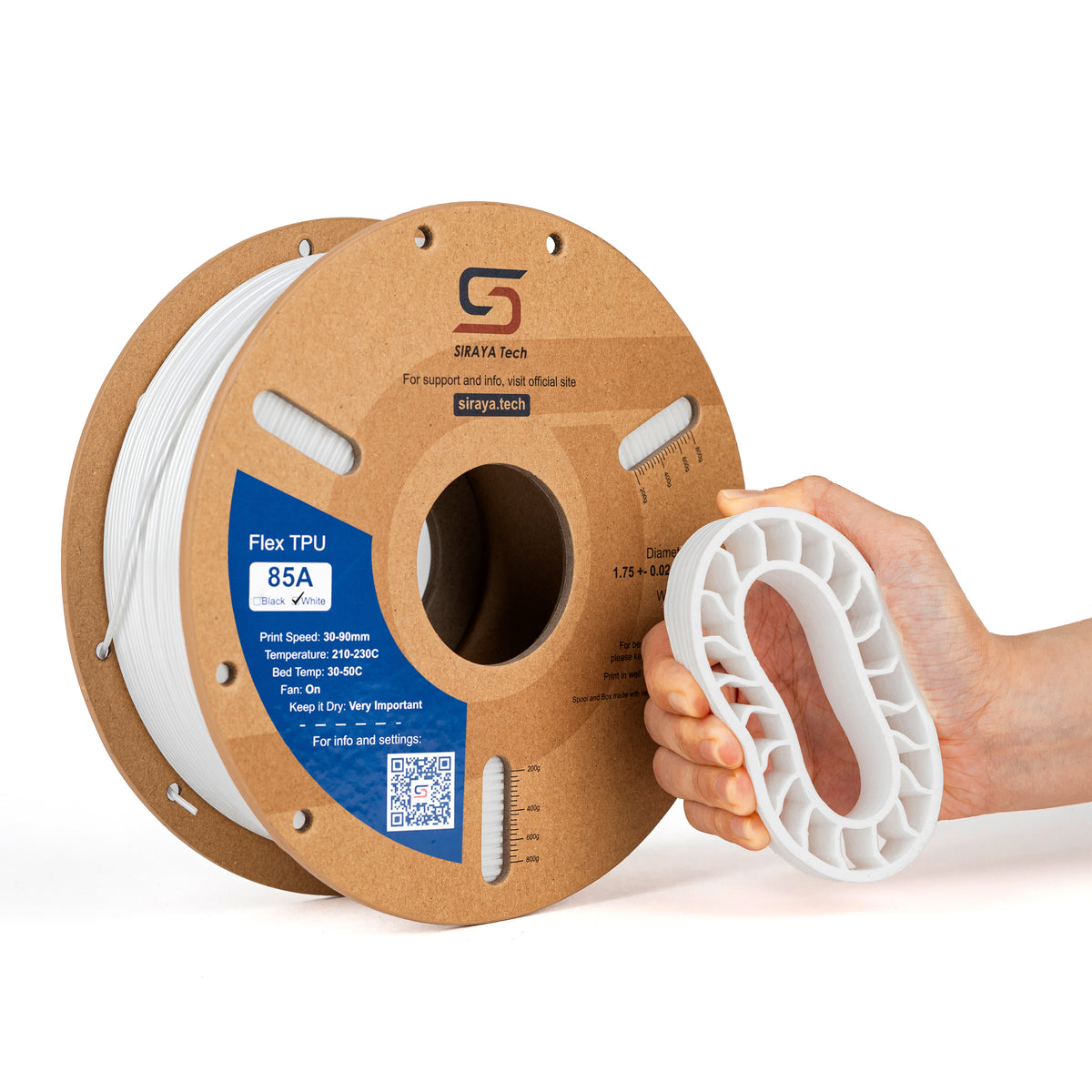
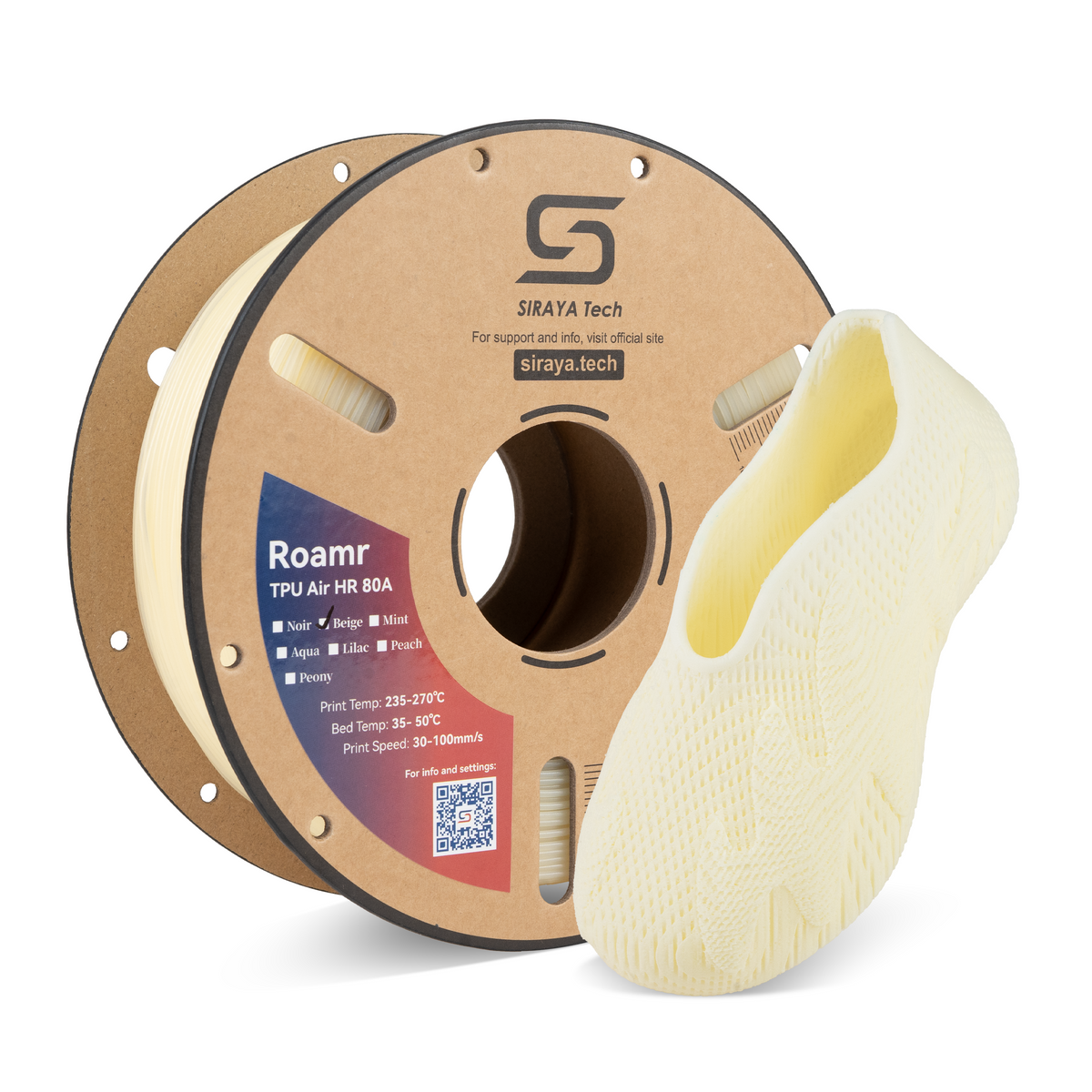
Can you Actually Put TPU in the AMS?

The short answer is no. Bambu Lab officially states that TPU is not compatible with the AMS (Automatic Material System).
If you are looking for the fast answer to how to print TPU on Bambu Lab AMS, here is the breakdown:
- The Risk: TPU is flexible and soft. The AMS pushes filament through long PTFE tubes with many gears. Pushing flexible filament this distance causes it to buckle and jam inside the internal hub.
- The Solution: You must use the External Spool Holder mounted on the back or side of your printer. This bypasses the AMS unit completely.
- The Exception: Some users claim success with extremely hard TPUs (Shore 75D). However, standard 95A and 85A will almost certainly jam and could damage your expensive feeder motors.
- The Settings: Even when you bypass the AMS, you need to adjust "Volumetric Flow Rate" in Bambu Studio to prevent clogging the nozzle.
Why TPU Jams in the Bambu Lab AMS System
The AMS pushes filament through nearly a meter of PTFE tubing with multiple gears.
Flexible filament acts like a wet noodle—when pushed over that distance, it buckles, twists, and jams inside the internal hub.
Clearing an AMS jam often requires disassembling the unit and voiding the warranty.
The "Pushing Rope" Problem
Imagine you have a long piece of cooked spaghetti on a table. If you pull it from the front, it moves easily. But if you try to push it from the back, what happens? It immediately bends and coils up.
That is exactly what TPU does.
- Rigid Filament (PLA/PETG): It is stiff. It has high "columnar strength." When the motor pushes the back of the filament, the front of the filament moves forward. It acts like a solid rod.
- Flexible Filament (TPU): It is soft. It has low columnar strength. When the AMS motor pushes the back of the filament, the friction in the tube stops the front from moving. The middle of the filament squishes, expands, and buckles.
The Internal Hub Danger
Inside the AMS, there is a complex "filament hub." This is where the four filament paths merge into one. This area has very tight tolerances. When TPU buckles, it tends to expand sideways. It gets wedged inside this hub.
Once it jams there, you cannot just pull it out. You often have to disassemble the entire AMS unit, voiding screws and unplugging ribbon cables, just to clear a tiny piece of plastic. It is a headache you want to avoid.
Printing TPU on Bambu Lab AMS Using the External Spool Holder
Since the AMS is a no-go for 95A and 85A filaments, you need to use the manual method. Every Bambu printer comes with an external spool holder.
On the X1 and P1 series, this is usually mounted on the back. On the A1 series, it is a separate stand.
Here is the step-by-step process for safely printing TPU on Bambu LAB AMS:
Step 1: Unload the AMS
First, make sure your printer is clear. Go to the printer screen or the "Device" tab in Bambu Studio.
Hit "Unload" to clear any PLA or PETG currently in the extruder. The toolhead will cut the filament, and the AMS will pull it back.
Step 2: Prepare the Hardware
On the back of the printer, you will see a PTFE tube connecting the AMS buffer to the machine. You cannot just shove the TPU in there if the AMS is still connected.
- The Standard Method: Disconnect the PTFE tube from the coupler on the back of the machine. This disconnects the AMS.
- The Pro Method (Y-Splitter): Most advanced users print a "Y-Splitter." This small plastic part allows you to keep the AMS connected while providing a second entry point for the external spool.
You can find files for these on MakerWorld or Printables. It saves you from having to reach behind the printer every time.
Step 3: Load the TPU Manually
Place your spool of Siraya Tech TPU filament on the external holder. Take the end of the filament and feed it into the PTFE tube (or your Y-Splitter). Keep pushing gently until it reaches the toolhead gears. You will feel a bit of resistance when it hits the extruder.
Step 4: Enable "External Spool" in Slicer
This is where many people get confused. In Bambu Studio, the software assumes you want to use the AMS.
- Slice your model as usual.
- Click "Print Plate."
- A dialogue box will appear with a checklist.
- Uncheck the "Enable AMS" box.
Once you uncheck this, the printer knows to ignore the AMS. It will heat up and then ask you to confirm that filament is loaded in the external spool.
Step 5: The Load Procedure
On the printer screen, you may need to hit "Load" if the printer does not automatically grab the filament. Ensure the nozzle is hot (around 230°C for TPU) before trying to load. Watch the nozzle to ensure the material flows cleanly.
If you are printing extremely soft materials, check our guide how to print soft flex TPU on Bambu Lab for specific loading tips.
Bambu Studio Settings for TPU
Even though you are bypassing the AMS, you still need specific settings. Bambu printers are designed for speed, but TPU hates speed. Use this "Cheat Sheet" to configure your filament profile.
| Setting (Filament Tab) | Recommended Value | Why? |
|---|---|---|
| Max Volumetric Speed | 2.0 - 3.5 mm³/s | This is the speed limit. Going higher causes under-extrusion and clogging. |
| Nozzle Temp | 220°C - 240°C | TPU needs heat to flow smoothly. |
| Bed Temp | 35°C - 45°C | TPU sticks very well; high heat isn't needed. |
| Retraction Length | 0.4mm - 0.8mm | Keep it short. Long retractions stretch the filament. |
| Cooling Fan | 100% | Essential for crisp overhangs and bridges. |
👉 For more detailed slicer numbers, read our article on TPU 85A filament on Bambu X1 and P1 series 3D printers.
Troubleshooting Common Issues When Printing TPU on Bambu Lab AMS
So you tried to put it in the AMS anyway, or maybe you just had a bad print. Here is how to fix the most common problems.
1. The AMS Jam
If you accidentally loaded TPU into the AMS and it is now stuck, do not panic. And definitely do not pull it forcefully from the outside. You will strip the plastic gears inside the feeder.
- Step 1: Disconnect the PTFE tubes.
- Step 2: Try to locate where the break is. Is it in the tube? Or inside the box?
- Step 3: If it is inside the box, you will need to open the AMS shell. There are two screws under the spool holder area. Remove those, and the internal unit lifts out.
- Step 4: Check the internal hub. You may need to press the black lever to release the tension on the filament.
Reference: We have a guide on how to remove filament stuck in toolhead Bambu Labs A1. While the A1 is different, the principles of clearing jams safely are similar.
2. Stringing
Bambu printers run hot and fast. This is a recipe for stringing with TPU. If your print looks like it is covered in cobwebs, your filament is likely wet.
- The Moisture Factor: TPU is hygroscopic. It drinks water from the air. Even if you just opened the bag, it might have moisture in it.
- The Fix: Dry it. Put the spool in a filament dryer at 55°C for at least 6 hours. If you use the X1 Carbon, you can actually use the "Filament Drying" utility on the printer's heated bed to dry your spool.
3. Bed Adhesion is Too Strong
TPU bonds aggressively to PEI sheets. If you print directly on the smooth High Temp Plate or the Textured PEI plate, you might damage the sheet when removing the print.
- The Fix: Use a release agent. A glue stick is your friend. It puts a barrier between the plastic and the bed.
- The Plate: The "Engineering Plate" or "Cool Plate" works well for TPU.
Can I Use TPU in the AMS Lite (A1 Mini)?
The Bambu Lab A1 and A1 Mini use a different system called the "AMS Lite." This system does not have an enclosed box or long internal tubes. The path is much shorter and simpler.
Because of this, some users have success printing stiffer TPU (95A) through the AMS Lite. However, it is still not officially supported by Bambu Lab.
The risk is lower than the big AMS unit, but it is still there. If you want 100% reliability, stick to the external single spool holder even on the A1 series.
Check out our best filament for Bambu A1 guide for specific tips on this machine.
Project Ideas for Your Bambu
Once you master the external spool method, a whole new world of printing opens up. What should you print first?
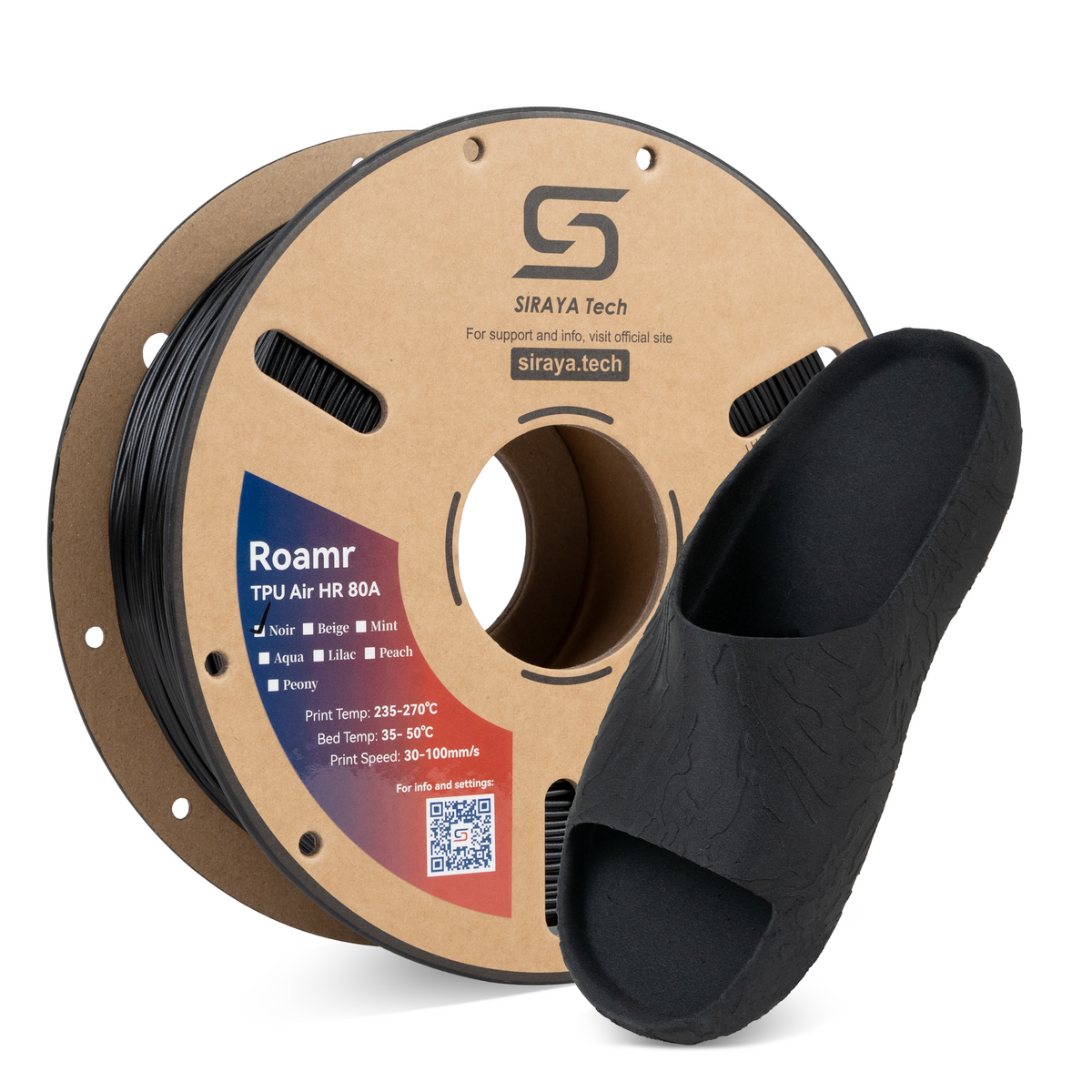
1. Custom Insoles
The Bambu printer is accurate enough to print complex lattice structures. You can print custom insoles for your shoes that are breathable and squishy.
- Material: Use 85A TPU for a softer cushion feel. Learn more about the materials in our 3D-printed shoes guide.
You May Want to Shop 3D Printed Shoes Filaments
Explore More

2. Multicolor (The Manual Way)
Just because you can't use the AMS doesn't mean you can't print multicolor TPU.
- The Method: In the slicer, add a "Pause at Layer Height." When the printer pauses, manually unload the first color from the external holder and load the second color. Resume print.
- Result: You can make signs, coasters, or phone cases with two distinct colors.
3. Vibration Feet
The Bambu printers vibrate a lot because they move so fast. You can print custom TPU feet for the printer itself to dampen the noise.
4. Drone Parts
If you fly FPV drones, you know you crash. TPU is the only material that survives a crash. Print camera mounts, motor guards, and antenna holders.
Conclusion
While the answer to how to print TPU on Bambu Lab AMS is technically "you shouldn't," that doesn't mean you can't print TPU on your Bambu printer. In fact, the Bambu X1 and P1 series are some of the best TPU printers on the market.
By taking the extra minute to load the filament externally, you protect your expensive AMS unit from jams while still getting the incredible print quality these machines are famous for.
Respect the material. Slow down the speed. Keep the filament dry. If you follow these three rules, your functional flexible parts will turn out perfect every time.
Ready to stock up on flexible materials?
- Shop TPU Filament – High-performance 95A and 85A options.
- Shop Bambu Filament Alternatives – Compatible spools for your X1 and P1.
- Shop 3D Printed Shoes Filament – Soft materials for wearable projects.
FAQs on How to Print TPU on Bambu Lab AMS
Will using TPU in the AMS void my warranty?
Bambu Lab explicitly warns against using TPU in the AMS. If you jam the unit with unsupported filament and break a gear trying to fix it, it might not be covered by the standard warranty. It is best to stick to the external spool to be safe.
Can you print TPU in Bambu AMS?
No, TPU is not recommended for use in the Bambu AMS. TPU is a soft and flexible filament that can bend and jam inside the AMS feed system. Bambu Lab advises printing TPU from an external spool instead. This helps avoid feeding issues and print failures.
Can Bambu Lab printers print TPU?
Yes, Bambu Lab printers can print TPU when using an external spool holder. Models like the Bambu A1, P1, and X1 handle TPU well with the right settings. TPU prints best at slower speeds due to its flexibility. Direct feeding improves control and print quality.
Do you need to dry TPU for AMS?
Yes, TPU should be dried before printing, even when not using AMS. TPU absorbs moisture easily, which can cause stringing and weak prints. Drying the filament improves layer bonding and surface finish. A dry TPU filament prints more consistently and smoothly.
How to print TPU on a Bambu A1?
To print TPU on a Bambu A1, load the filament using the external spool holder, not the AMS. Use a TPU or flexible filament profile and reduce print speed. Make sure the filament is dry before printing. These steps help prevent feeding problems and improve print quality.